How to Free a Port on Mac (and Fix EADDRINUSE Errors)
Hitting the dreaded EADDRINUSE error? Stuck background processes can easily stall local development. Here is the fastest way to track down the PID and force-quit rogue processes using your Mac terminal so you can get back to building.
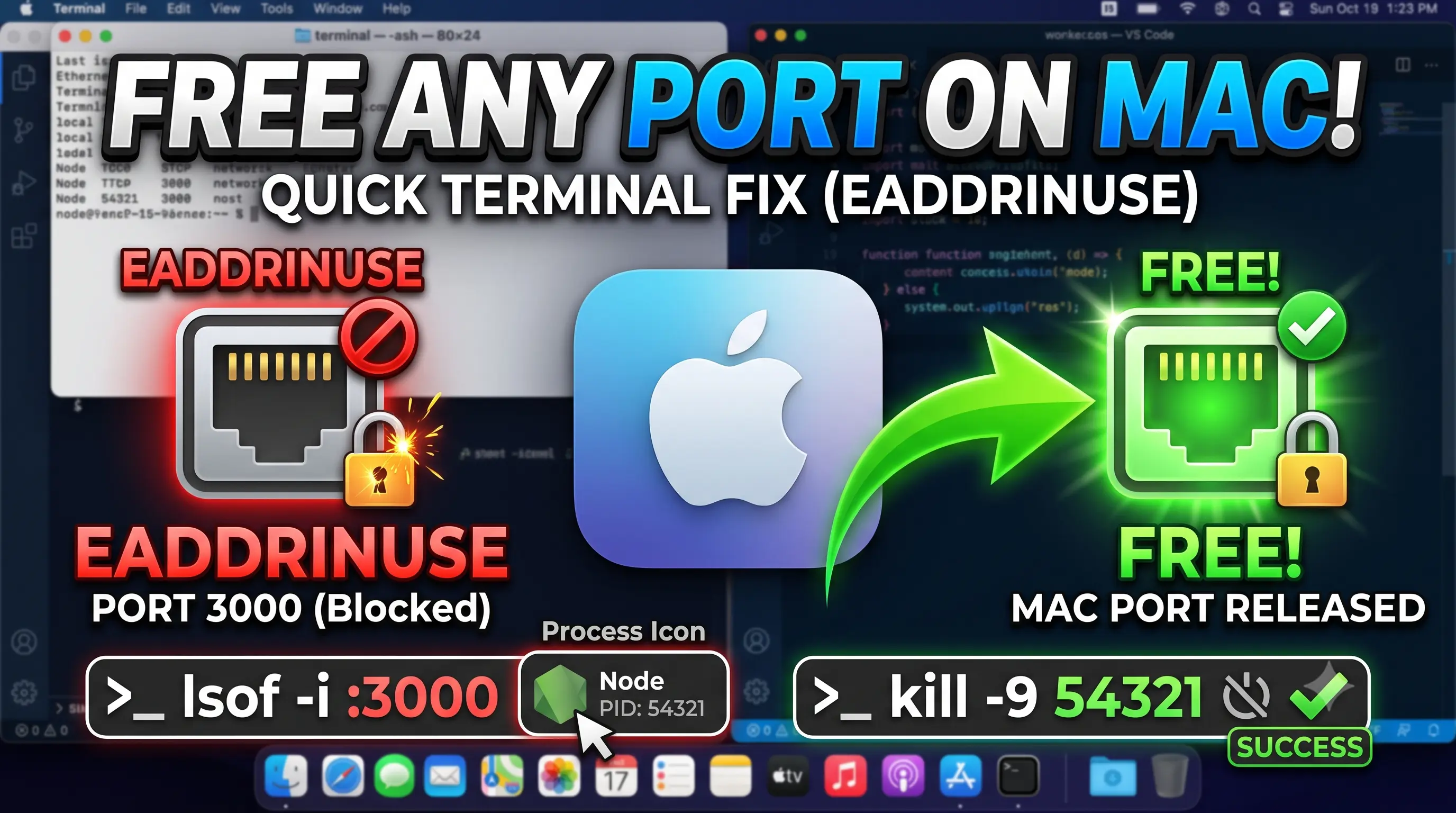
1. Find the Process ID (PID)
If you are developing locally on a Mac, you have almost certainly encountered the dreaded EADDRINUSE: address already in use error. This happens when an app crashes or closes improperly, leaving its background process running and clinging to your port (usually 3000, 8080, or 4000).
Here is the fastest way to track down the rogue process and force it to release the port using the Terminal.
lsof -i :3000You will see an output that looks like this:
COMMAND   PID  USER   FD   TYPE             DEVICE SIZE/OFF NODE NAME
node    54321 admin   23u  IPv6 0x1a2b3c4d5e6f7g8h      0t0  TCP *:hbci (LISTEN)
The only thing you need from this list is the number in the PID column (in this example, 54321).
2. Kill the Process
Now that you have the PID, you can force the process to quit.
kill -9 54321killtells the system to terminate the process.-9is the signal for "SIGKILL," which forces an immediate, ungraceful exit (perfect for frozen processes).- If the terminal tells you "Operation not permitted," the process belongs to the root user. Just add
sudoto the front:sudo kill -9 54321.
3. Verify the Port is Free
Run the first command again to make sure nothing is returned:
lsof -i :3000If it returns a blank line, the port is completely free and ready to use.
3. Alternative: The Node.js Shortcut
If you are a JavaScript developer and already have Node/npm installed on your machine, there is an even faster way that skips finding the PID entirely. You can use the npx package runner to kill the port in a single command:
npx kill-port 30004. GUI Method: Activity Monitor
If you prefer not to use the Terminal and you know the name of the process running (like Node, Python, or Docker):
- Open Activity Monitor (Cmd + Space, type "Activity Monitor").
- Search for the name of the process in the top right.
- Select the process and click the X button at the top of the window.
- Choose Force Quit.